
Mastering a song
Understand what mastering adds and how to organize references and the arrangement before that stage.

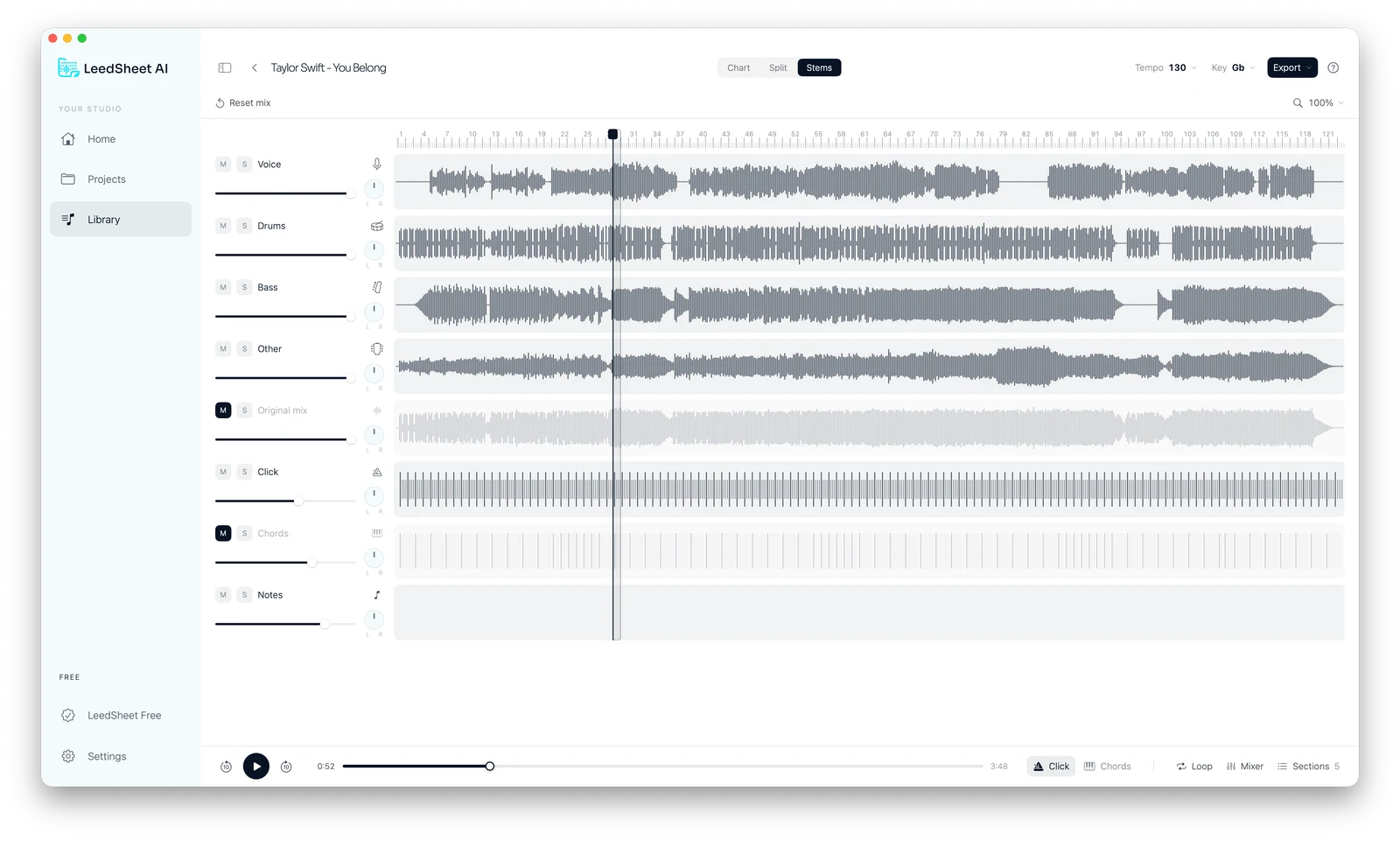
Mastering works on a final mix to prepare its presentation and distribution. LeedSheet offers analysis, stems and charts; mastering requires dedicated audio tools.
Practice works better when you know what you want to hear. Before changing controls, choose a goal: learn an entrance, follow a progression or prepare your own performance. Audio and charts can help you work toward that goal from two perspectives.
Understand the process before you begin
Mastering starts with mixing decisions.
Before processing audio, separate arrangement, mixing and mastering decisions. Changing an entrance or removing an instrument changes the performance; balancing tracks is mixing work. Processing the finished mix comes later.
Stems are a listening and analysis tool. They do not replace the original recording or recover every detail of the studio session. Compare what you hear with the complete mix and note what needs review.
Step by step: prepare your song
1. Finish the arrangement.
Review entrances, sections and instrumental balance before finalizing the mix.
2. Compare references.
Listen to references at a comparable level and note balance and dynamic differences.
3. Use dedicated tools.
Master in your DAW or with an engineer. Keep a copy of the mix before processing it.
Start with a short passage. Alternate between the isolated part and the complete song to check how what you are learning fits together.
From audio to an editable chart
Listening to instruments helps you understand a performance. A chart documents its structure: chords, measures, key and sections. LeedSheet AI proposes a first version from your audio so you can review it with your own musical judgment.
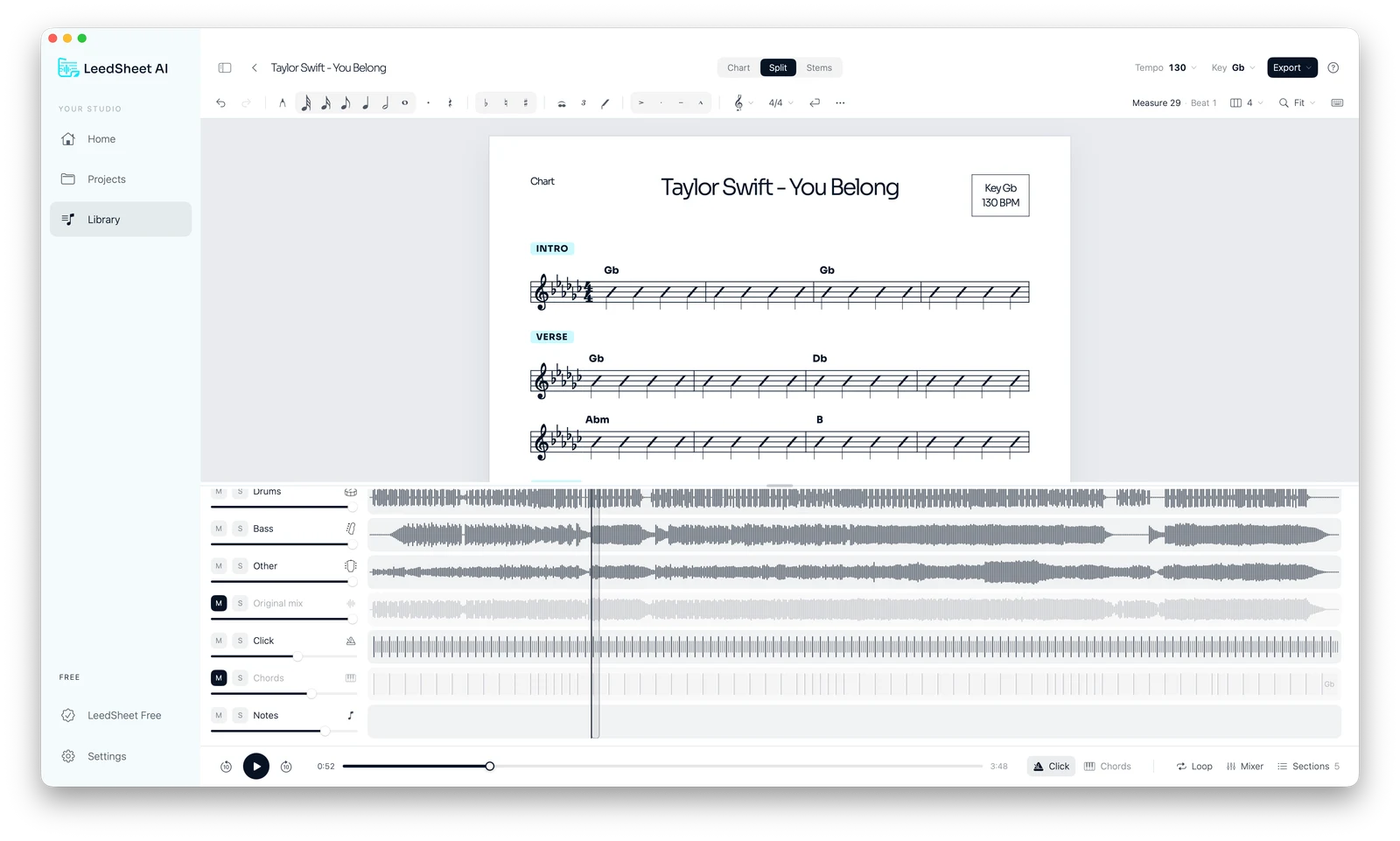
- Review the chords while listening to the passage.
- Adapt the chart key to your version.
- Add the notes and cues you need to remember.
- Export a PDF to take to rehearsal.
How to review your result
Listen with headphones and check passages where several instruments overlap. Effects, backing vocals and sounds sharing frequencies can leave remnants in separated tracks. A complete first listen helps you decide whether the material suits your goal.
Also review the chart musically: check chord changes and section entrances. If detection differs from what you hear, correct the result before sharing it with your band. AI provides a starting point; you define the final version.
LEEDSHEET AI
Try LeedSheet on your computer
7-day free trial. Then US$9.99 per month. Choose the version for your computer and start with a song you know.
macOS: Apple Silicon · Windows: 64-bit
Frequently asked questions
Are mixing and mastering the same?
Mixing works on the relationship between individual tracks. Mastering reviews the finished mix as a whole and prepares its final presentation.
Does LeedSheet master songs?
LeedSheet helps you analyze audio, work with stems and prepare charts. Production mixing and mastering require dedicated audio tools.
Can I correct the chords in the chart?
Yes. Review the chords suggested by AI, change the chart key and organize sections to reflect the arrangement you want to play.
Which computers does it run on?
The desktop app is available for Apple Silicon Macs and 64-bit Windows computers. Export your chart as a PDF to read it on other devices too.