
How to separate vocals from music: a step-by-step guide
Learn to use an isolated vocal track to study entrances, phrasing and its relationship with the accompaniment.

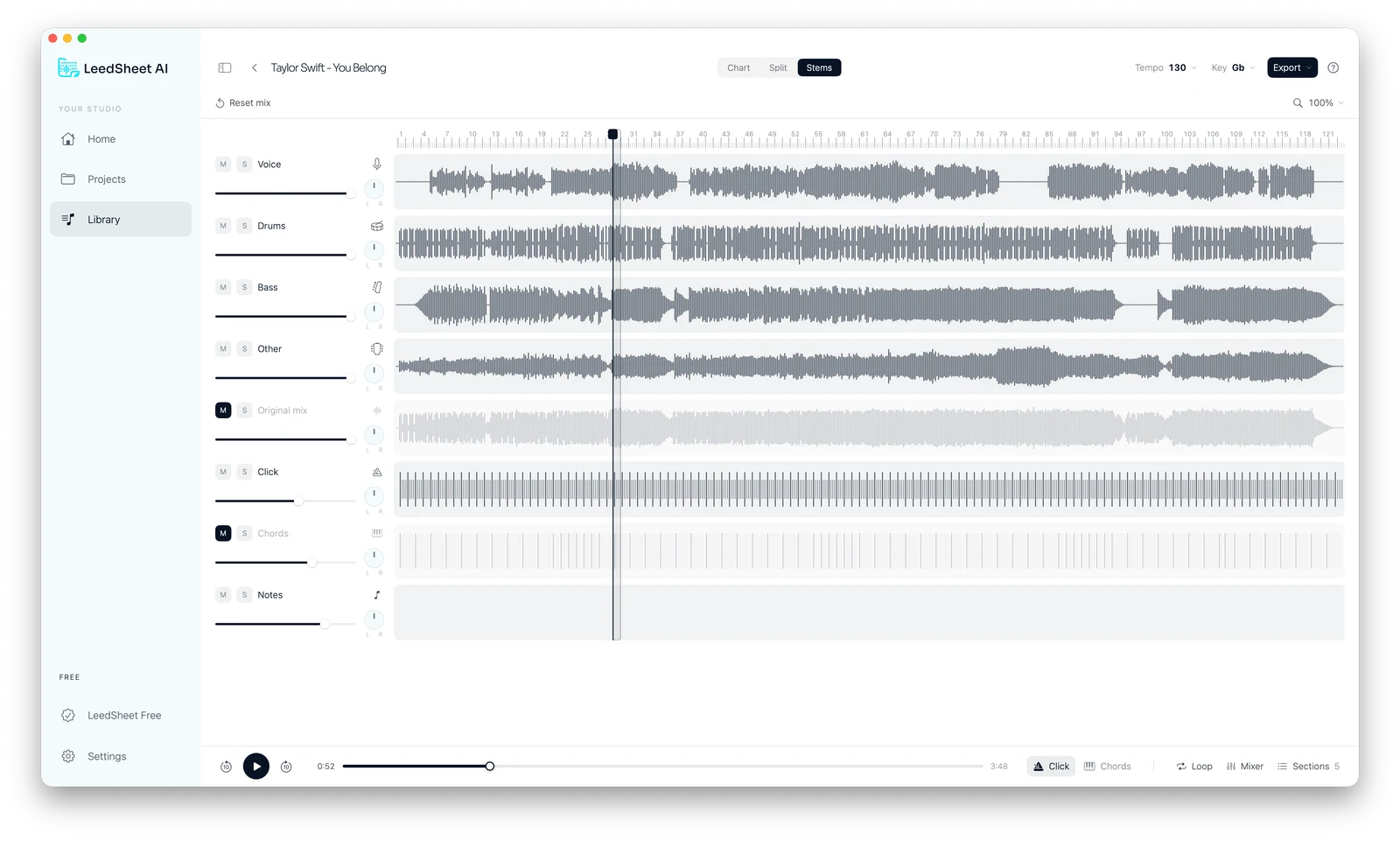
Isolating brings a track into focus. Muting removes it from the mix. Alternate both to understand the part and then perform it with the song.
Practice works better when you know what you want to hear. Before changing controls, choose a goal: learn an entrance, follow a progression or prepare your own performance. Audio and charts can help you work toward that goal from two perspectives.
How AI vocal separation works
Isolating and muting are two ways to study.
AI separation estimates which sounds belong to vocals and instruments in a recording. The resulting tracks, called stems, can be adjusted independently. This lets you study one part without turning down the entire song.
Stems are a listening and analysis tool. They do not replace the original recording or recover every detail of the studio session. Compare what you hear with the complete mix and note what needs review.
Step by step: from song to practice
1. Separate the audio.
Generate stems from the recording and find the vocal track.
2. Hear the detail.
Isolate vocals to study the beginning and end of each phrase.
3. Bring the accompaniment back.
Combine the tracks again to check the phrasing in the song.
Start with a short passage. Alternate between the isolated part and the complete song to check how what you are learning fits together.
From audio to an editable chart
Listening to instruments helps you understand a performance. A chart documents its structure: chords, measures, key and sections. LeedSheet AI proposes a first version from your audio so you can review it with your own musical judgment.
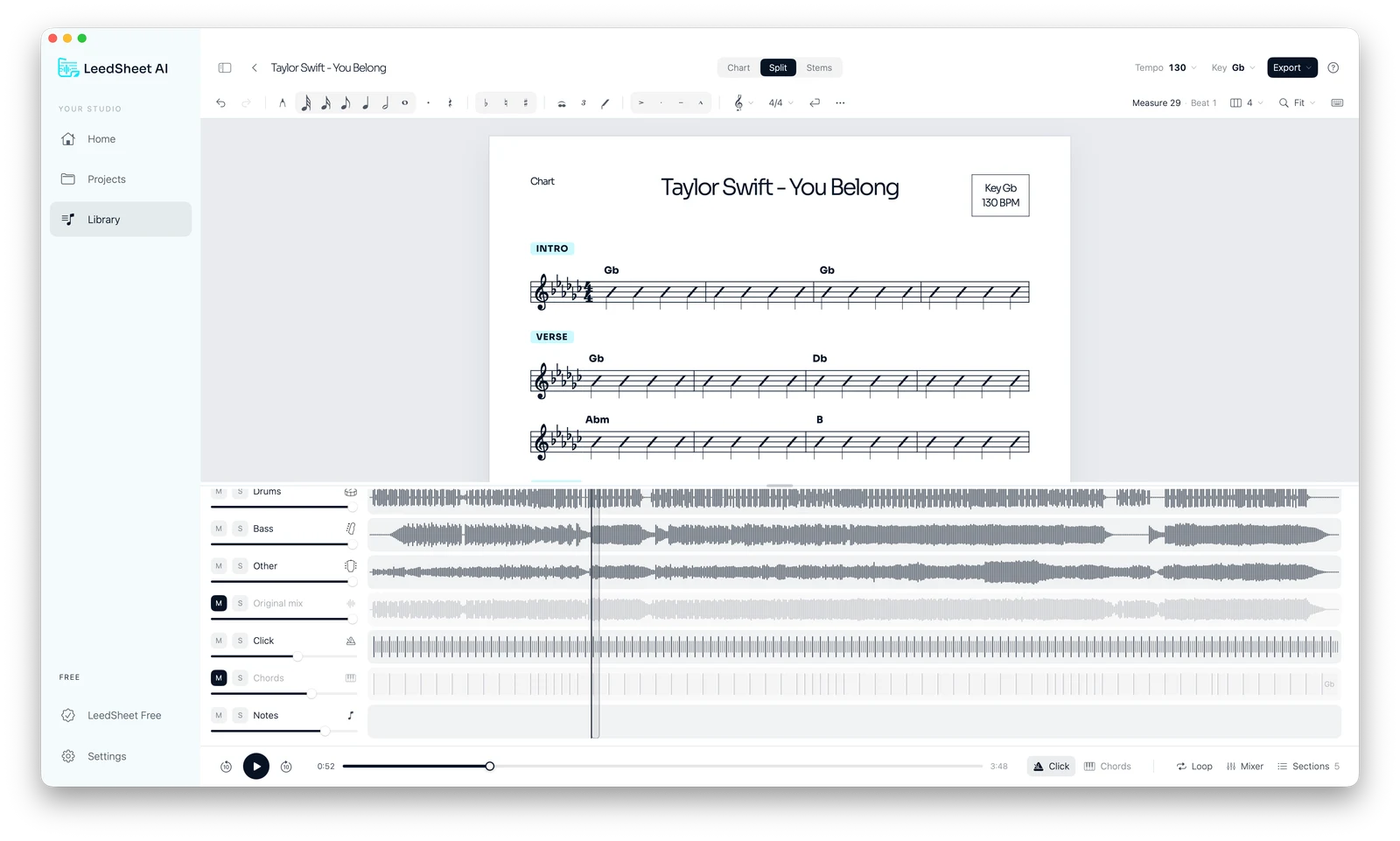
- Review the chords while listening to the passage.
- Adapt the chart key to your version.
- Add the notes and cues you need to remember.
- Export a PDF to take to rehearsal.
How to review your result
Listen with headphones and check passages where several instruments overlap. Effects, backing vocals and sounds sharing frequencies can leave remnants in separated tracks. A complete first listen helps you decide whether the material suits your goal.
Also review the chart musically: check chord changes and section entrances. If detection differs from what you hear, correct the result before sharing it with your band. AI provides a starting point; you define the final version.
LEEDSHEET AI
Try LeedSheet on your computer
7-day free trial. Then US$9.99 per month. Choose the version for your computer and start with a song you know.
macOS: Apple Silicon · Windows: 64-bit
Frequently asked questions
Is isolating a vocal the same as muting it?
No. Isolating vocals lets you hear that part on its own. Muting vocals brings the accompaniment forward. Alternate both ways of listening to study a song.
Does separation always remove every vocal sound?
The result depends on the recording. Vocal remnants, reverb or sounds shared with other instruments may remain. Listen to the accompaniment before using it to practice.
Can I correct the chords in the chart?
Yes. Review the chords suggested by AI, change the chart key and organize sections to reflect the arrangement you want to play.
Which computers does it run on?
The desktop app is available for Apple Silicon Macs and 64-bit Windows computers. Export your chart as a PDF to read it on other devices too.